
How to plan a trip
The trip planner puts your whole trip in one place: where you start, the places you'll go in order, where you finish, the travel tips you want to see on the way, and, once you've saved it, the dates, how you'll get from place to place and where you'll stay.
Open the trip planner See an example trip
1 Choose where you start
Most trips start from home. In Where you start, type the first few letters of a town, region or country. Places that match appear underneath: press Start here beside the right one (or press Enter for the first).
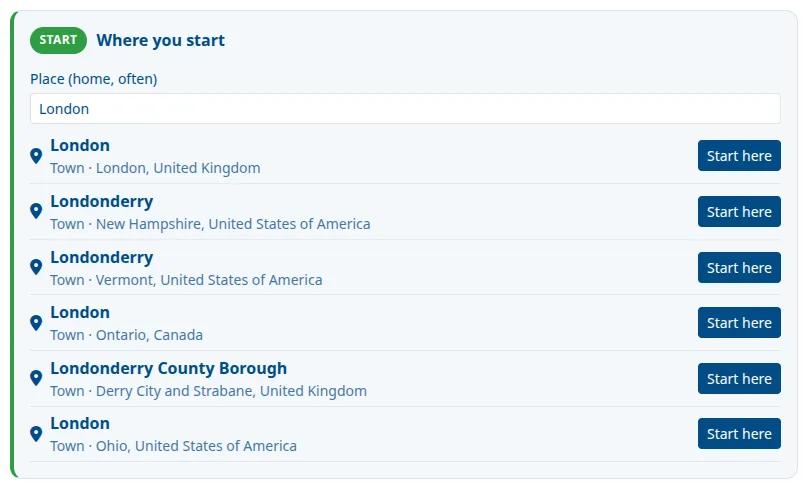
To change it later, press Clear beside it and choose again. You don't have to set a start: a trip can be just its stops.
2 Add the places you'll go
Under the start is Where are you going? (once you have a stop, Add another stop). Search for a town, region or country in the same way, and press Add. Each place you add goes on the end of the trip, numbered in order.
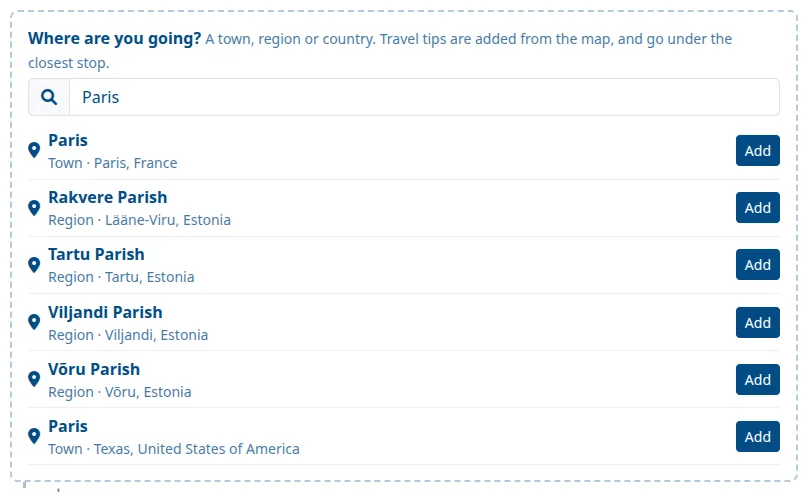
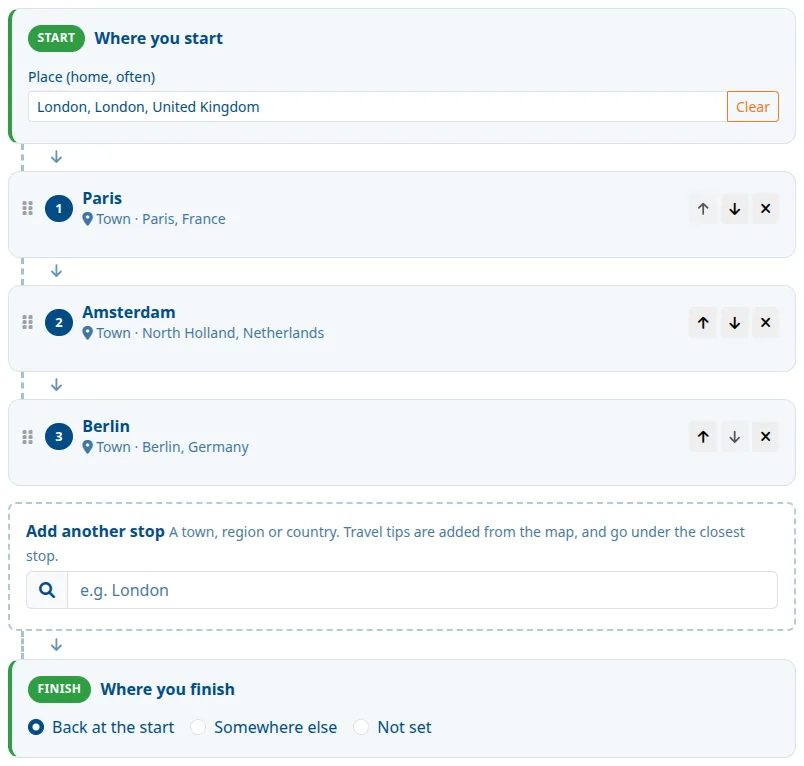
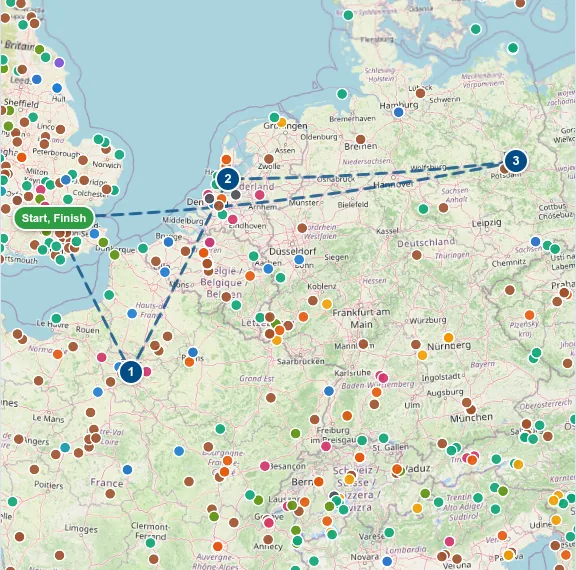
Add as many places as you like. Your route builds up from the start, through each stop, to the finish:
3 Choose where you finish
At the bottom, in Where you finish, choose:
- Back at the start: a round trip, home again.
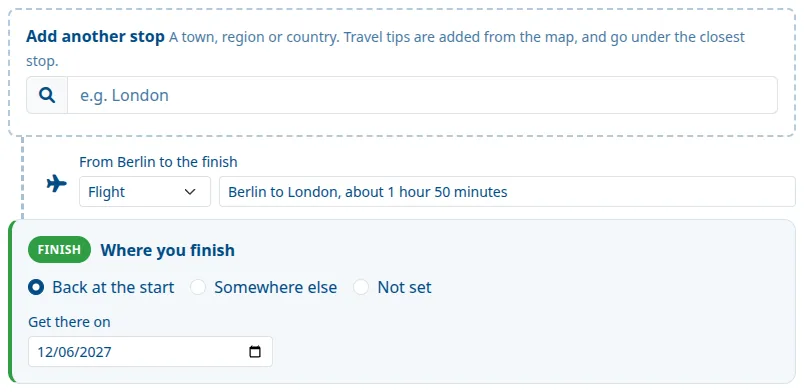
- Somewhere else: a search box appears; find the place and press Finish here.
- Not set: the trip just ends at the last stop.
Your choice is saved straight away.
4 Put the stops in order
Changed your mind about the order? Drag a stop to a new place: with a mouse, hold the button down on the stop's heading (anywhere but its name) and move it; on a phone or tablet, use the grip (the grip) at its left. An orange line shows where it will go. Let go to put it there, or press Escape to leave it where it was.
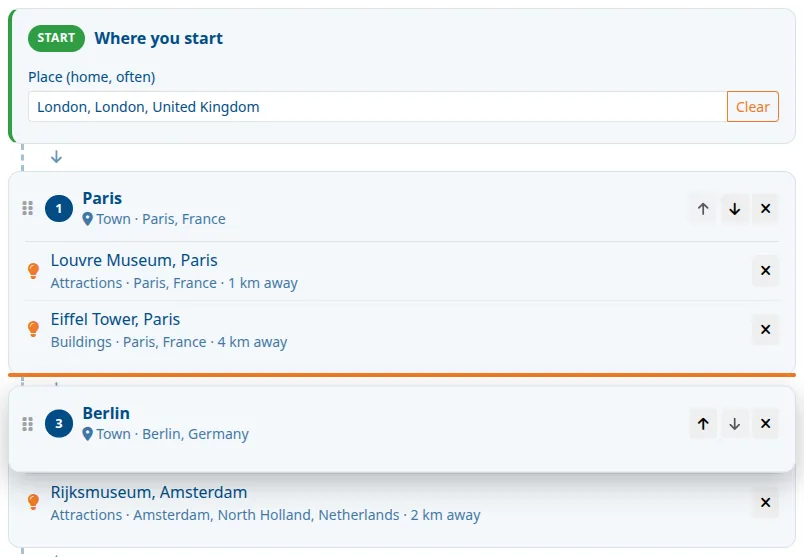
You can also use the arrows (up) and (down) on each stop to move it one place at a time, and (the cross) to take it out of the trip. Anything you've added to a stop (its dates, where you're staying, its notes) moves with it.
5 Add travel tips
Travel tips are the things to see and do: sights, walks, food, places to stay. You can add them two ways.
From the map
The map beside your trip shows every travel tip, as coloured dots, and your route on top of it: the start and finish in green, and each stop numbered. Click a dot to see what it is, then press Add to trip.
From a travel tip's page
Every travel tip's page has an Add to trip button, at the top of the box of details beside it.
Press it and the tip goes into the trip you're working on (if you don't have one yet, a new one is started). The page says so, with a link to your trip, and the button changes to In your trip:

Where they go
Travel tips aren't stops of their own: each one is listed under the closest point of your route (the start, a stop or the finish), with how far away it is. The Louvre and the Eiffel Tower go under Paris; the Rijksmuseum under Amsterdam.
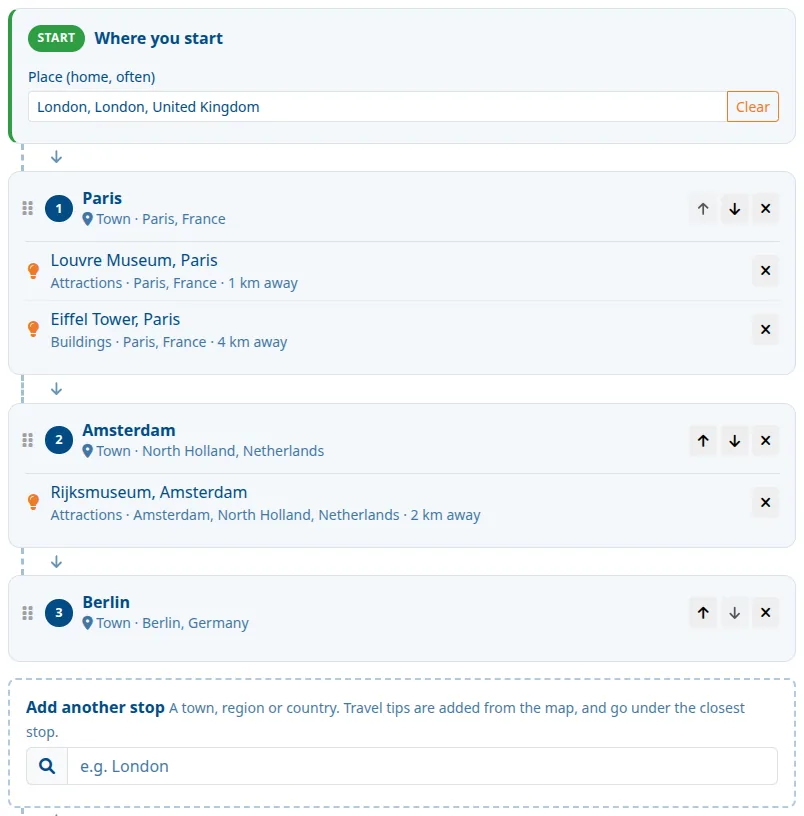
They keep up with your route: add a stop that's closer to a tip and the tip moves under it; take a stop out and its tips move to the next closest. If a tip is a long way (over 150 km) from anywhere on your route, it says far from the route. If you add travel tips before any stops, they wait in a list until you add one.
6 Save your trip
You can plan a route without an account: it's kept while you browse the site. To keep it for good, log in or create an account (it's free). Everything you've added becomes a trip in your account.

With an account you can also add dates, transport and places to stay, name your trip, plan more than one, and share it.
7 Add dates, transport and places to stay
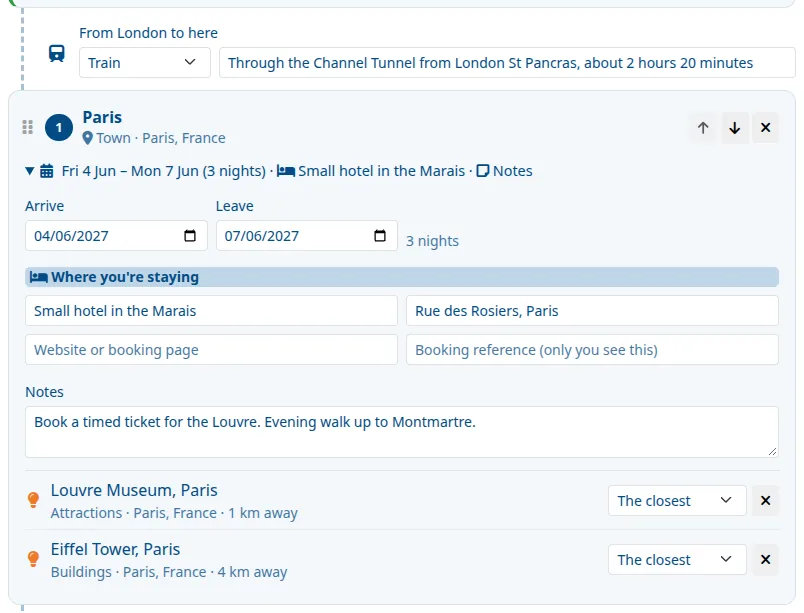
Once your trip is saved, each stop has more to fill in. Under its name, press Add dates, where you're staying and notes to open it:
- Arrive and Leave: the number of nights is worked out for you.
- Where you're staying: its name, address and website, and your booking reference. The booking reference is only ever shown to you, never on a shared trip.
- Notes: tickets to book, opening times, people to meet, anything.
Above each stop is how you get there from the place before: choose Train, Flight, Bus or coach, Car, Ferry or boat and so on, and add the details (times, flight number, seats).
The start has the day you leave, and the finish how you get there from the last stop and the day you arrive:
Press Save at the bottom when you're done (moving, adding or taking out a stop saves everything too). If a stop's dates come before the stop before it, you'll see a warning, so nothing gets missed.
Keeping a tip under a particular stop: each travel tip has a menu set to The closest. Choose another stop to keep it there instead, even if somewhere else is closer: handy for a day trip. If that stop is taken out, the tip goes back under the closest.
8 Name your trip, and plan more than one
A new trip is called My trip. To rename it, press the pencil (rename) beside its name at the top, type the new name and press Save (or Enter).

At the top of your trip you'll also find:
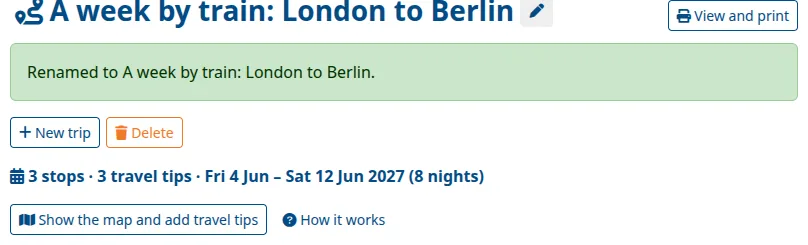
- New trip: start another. When you have more than one, a list here switches between them. The trip you were last working on is the one travel tips are added to.
- Delete: deletes this trip, for good (it asks first).
- The summary: how many stops and travel tips, and the whole trip's dates.
Your trips are also listed in your account.
9 Use the map
The map shows your route and every travel tip. Use Hide the map to give the trip the whole width (and Show the map to bring it back), and Whole route to zoom to your trip. Click any numbered marker to go to that place's travel tips.
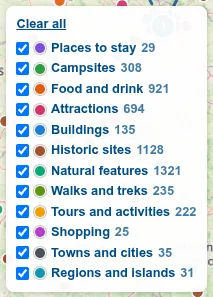
The key in the corner of the map switches each kind of travel tip on and off: untick Campsites, say, to hide them. Clear all hides them all, so you can tick just the ones you want; Show all brings them all back.
10 Share it or print it
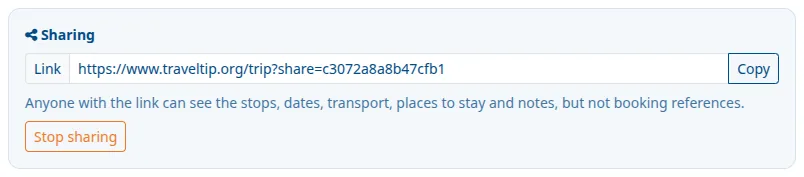
Your trips are private: only you can see them. To show one to someone, press Share at the bottom of the trip. You get a link to send to anyone: they'll see the route, the map, the dates, transport, where you're staying, notes and travel tips (but never booking references). Stop sharing turns the link off.
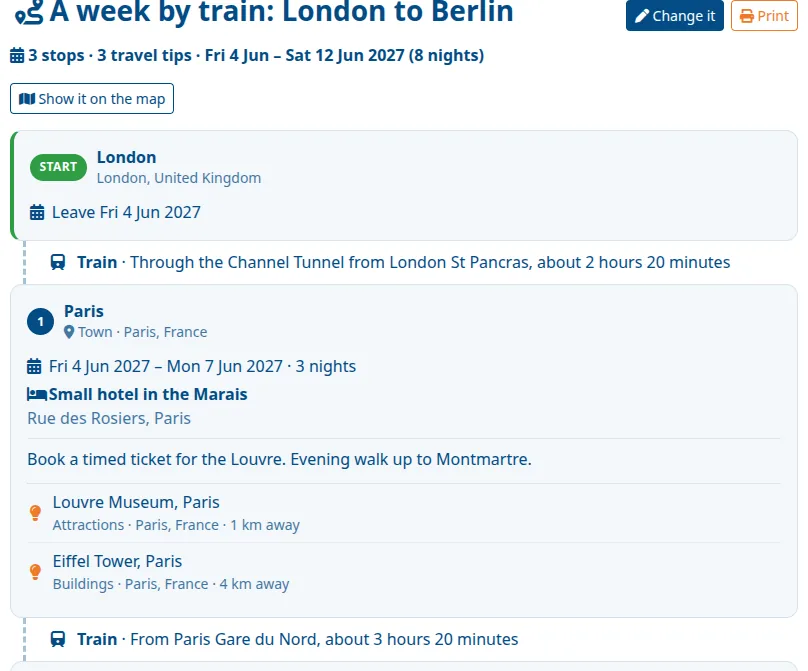
View and print sets your trip out to read, from start to finish, ready to print or save as a PDF to take with you:
Questions
- Do I need an account?
- Not to plan a route and add travel tips: that's kept while you browse. To keep a trip for good, add dates, transport and places to stay, plan more than one or share it, log in or create a free account.
- Who can see my trip?
- Only you, unless you share it. A shared trip can be seen by anyone with its link, but not booking references, and you can stop sharing at any time.
- Can a place be in my trip twice?
- Yes: starting and ending in London, say, or coming back to a city later on. Search for it and press Add again.
- Can I add a hotel or restaurant that isn't on TravelTip.org?
- Yes: put it in a stop's Where you're staying or Notes.
- How big can a trip be?
- Up to 150 stops and 300 travel tips, and you can have up to 30 trips.